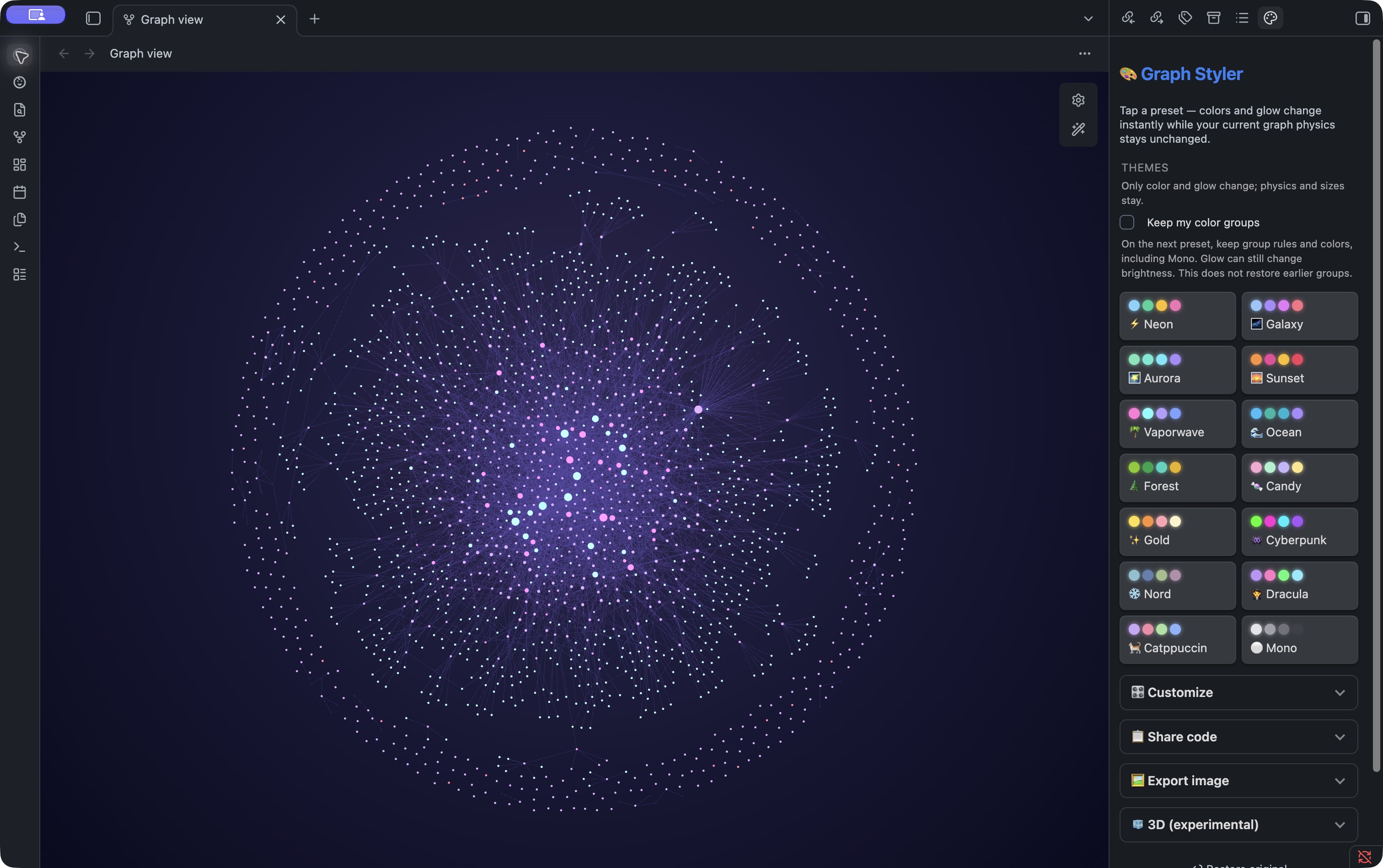
Your Obsidian graph,
one click away.

Change colors and glow, keep your current physics. No hand-written CSS needed.

Updated for 0.4.1 ยท October 14, 2026 ยท @phd.ai.log

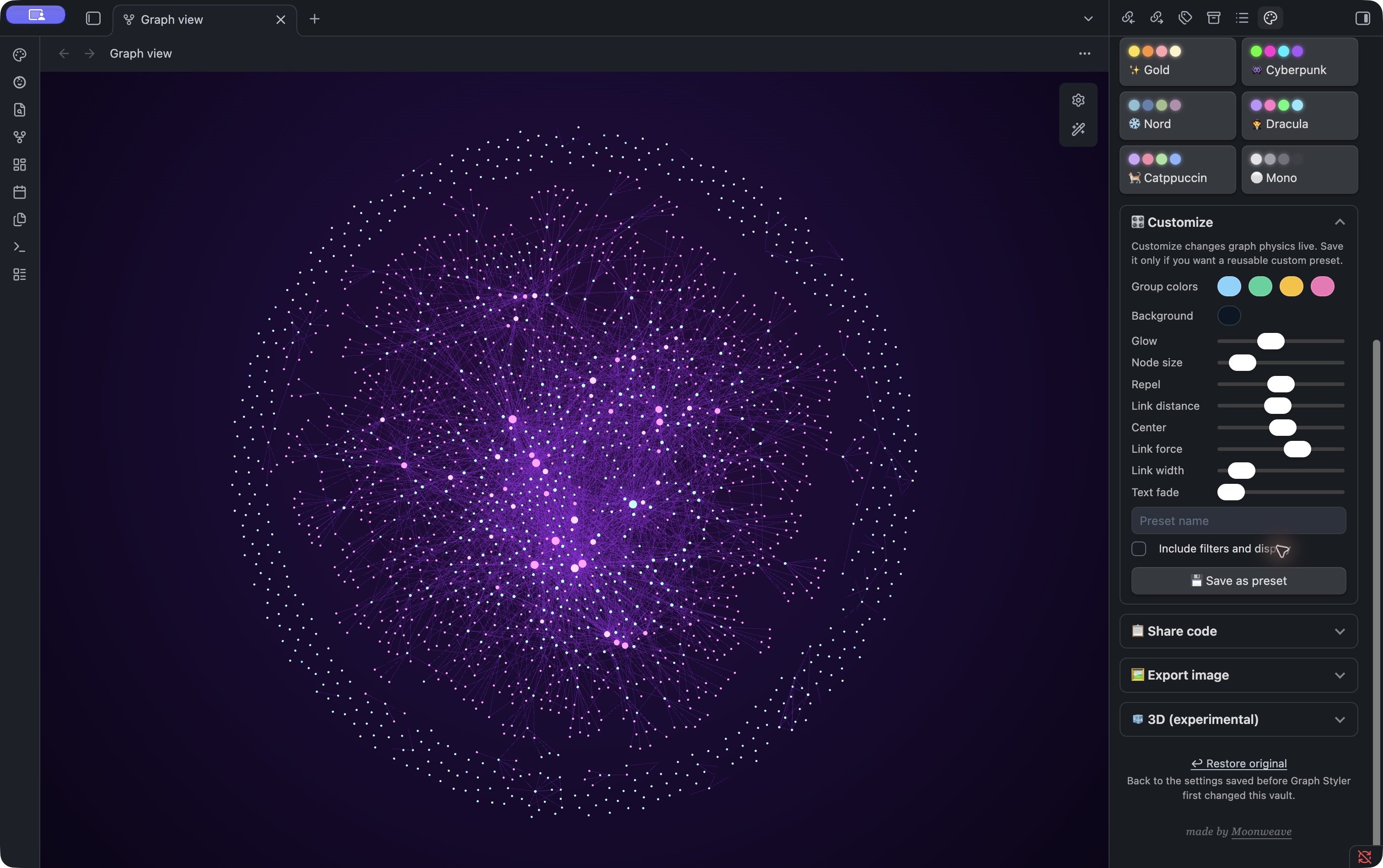
Research wiki graph with Graph Styler 0.4.1 open; note titles and search sidebar hidden

What it is

Obsidian's graph shows notes and their links as dots and lines. Graph Styler changes its colors, background and glow with one preset. Built-in presets leave your physics and sizes alone. It does not analyze your notes or create new links.

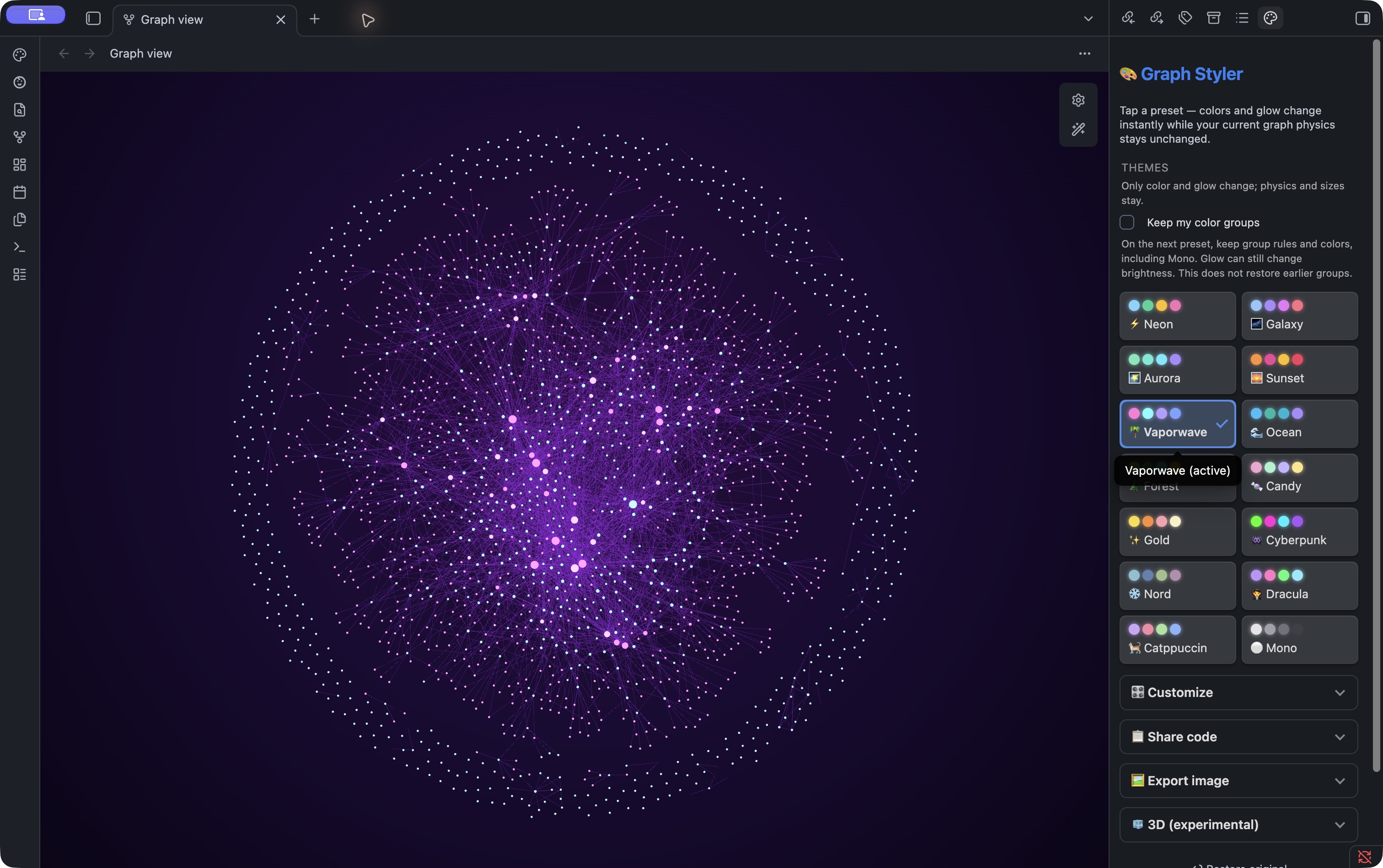
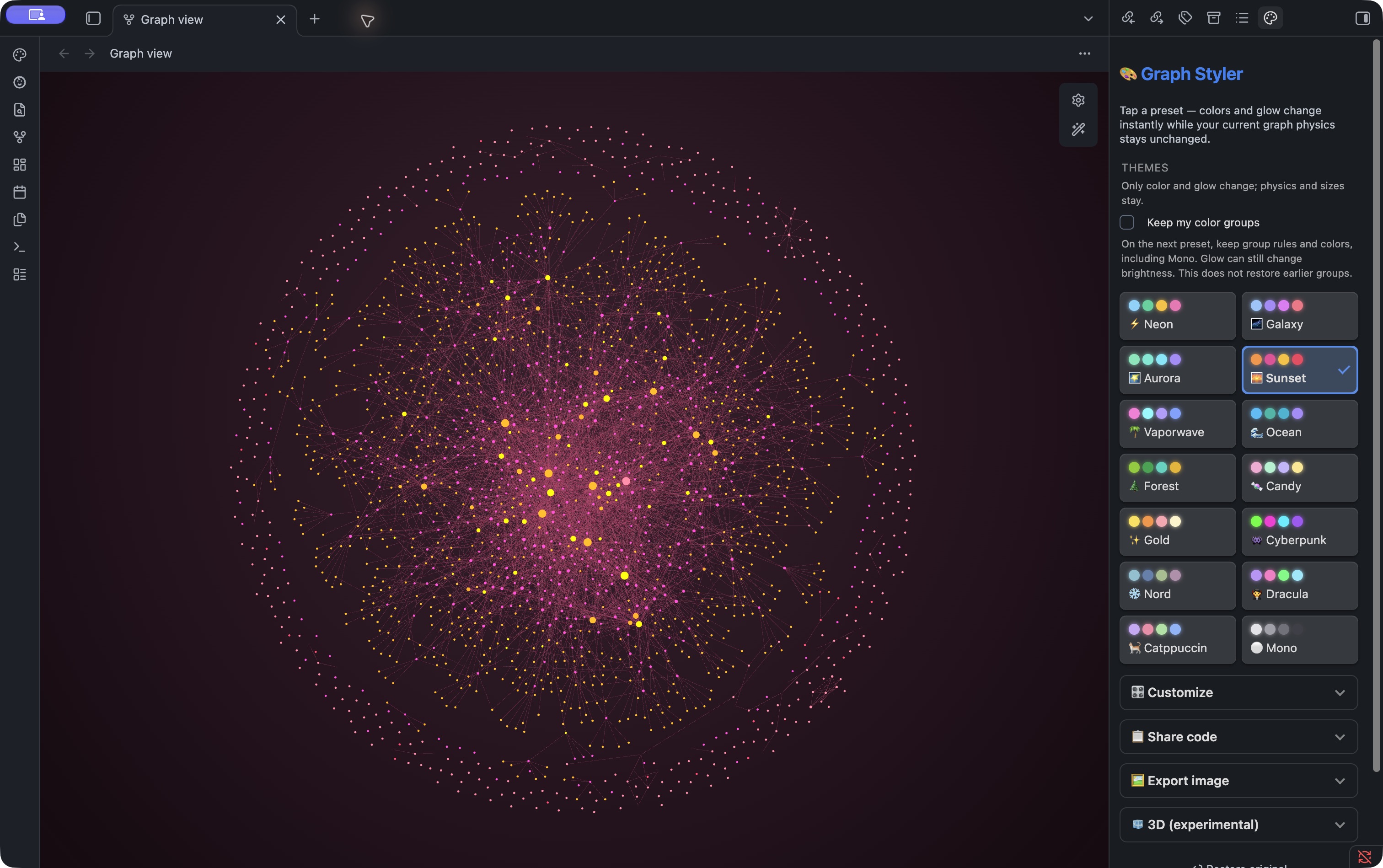
Same graph, different mood

โšก Neon๐ŸŒŒ Galaxy๐ŸŒ  Aurora๐ŸŒ… Sunset ๐ŸŒด Vaporwave๐ŸŒŠ Ocean๐ŸŒฒ Forest๐Ÿฌ Candy โœจ Gold๐Ÿ‘พ Cyberpunkโ„๏ธ Nord๐Ÿง› Dracula ๐Ÿˆ Catppuccinโšช Mono

Why a graph looks good

A pretty graph is really a few things working together. Once you know them you can do it by hand โ€” and you'll see exactly what Graph Styler does for you in one click.

Built-in presets change colors, background and glow only. Adjust physics in the graph settings or Customize when you want to. Custom presets also save physics settings, so applying one can change them.

Try it yourself โ€” glow CSS

Want just the glow without the plugin (an add-on that extends Obsidian)? Save the code below as <vault>/.obsidian/snippets/graph-glow.css and enable it in Settings โ†’ Appearance โ†’ CSS snippets. Built for dark mode. (Graph Styler does this for you.)

/* graph glow โ€” .obsidian/snippets/graph-glow.css */
.theme-dark .graph-view.color-circle { color: #7dd3fc; }
.theme-dark .graph-view.color-line   { color: #2b4a63; }
.theme-dark .graph-view.color-fill-tag { color: #f472b6; }
.workspace-leaf-content[data-type="graph"] .view-content,
.workspace-leaf-content[data-type="localgraph"] .view-content {
  background: radial-gradient(circle at 50% 45%, #16304a, #0b1624 70%) !important;
}
.workspace-leaf-content[data-type="graph"] .view-content > iframe,
.workspace-leaf-content[data-type="localgraph"] .view-content > iframe {
  filter: saturate(1.35) brightness(1.12);
}
/* Keep the input overlay above the filtered renderer. */
.workspace-leaf-content[data-type="graph"] .view-content > canvas ~ iframe,
.workspace-leaf-content[data-type="localgraph"] .view-content > canvas ~ iframe {
  pointer-events: none;
}

Install (beginner-friendly)

Light and dark app themes both work. Presets apply their own graph background, so you do not need to switch the whole app to dark mode.

You'll need the Obsidian desktop app. Graph Styler is now officially listed in Obsidian Community plugins (user-made add-ons), so you can install it directly without BRAT.

  1. 1Go to Settings โ†’ Community plugins, turn off Restricted mode, and enable community plugins.
  2. 2Click Browse and search for Graph Styler.
  3. 3Click Install, then enable Graph Styler in your installed plugins list.
https://obsidian.md/plugins?id=graph-styler
  1. 4Done! Open the graph view and click the ๐ŸŽจ icon in the left ribbon to open the panel.

Use BRAT with moonweave/obsidian-graph-styler only for development builds. For normal use, install from Community plugins.

๐Ÿค– Customize with AI

Try these prompts if you want help choosing colors. Enter hex colors in Graph Styler Customize, group queries in graph settings โ†’ Groups, and save CSS in a separate snippet file. Review AI-generated code and version compatibility before using it.

๐ŸŽจ Your own palette

Design a color theme for my Obsidian graph with a '[deep ocean]' mood: one dark background color plus four clearly distinct node colors, all as hex. One line on each color's feel.

โœจ Make a glow CSS

Adapt the glow CSS above to a [cyan] palette. Keep it scoped to global and local graphs and preserve the iframe input pass-through rule. List what to check for selector compatibility in my Obsidian version.

๐Ÿ—‚๏ธ Groups for my folders

My Obsidian folders are [Projects, Daily, Ideas]. Pick a harmonious hex color for each, then list them as graph-group entries: a path:"folder" query plus its color.

๐Ÿ”— Shape up the graph

My Obsidian graph looks too clumped. Explain what changing repel force, link distance and center force does. Give me an order for comparing one setting at a time after recording the original values. I will not change note links just for appearance.

How to use

All captures come from research-wiki in Graph Styler 0.4.1 and Obsidian 1.14.4, using the same dark app theme and English UI. Open an image for its original.

  1. 1Open the graph view and click the ๐ŸŽจ palette icon in the left ribbon โ€” a panel opens on the right.
  2. 2Tap a preset โ€” the graph restyles instantly. Keep the panel open while you move the graph.
  3. 3Open ๐ŸŽ›๏ธ Customize, drag the force/size/color/glow sliders, and ๐Ÿ’พ Save it as your own preset.
  4. 4โ†ฉ๏ธŽ Restore original returns to the graph settings saved before the first application, not the previous step. It overwrites later group and physics edits too; read the confirmation before restoring.

How do colors map? The preset palette is assigned to your busiest folders (or tags, if you don't use folders). It writes to Obsidian's native graph groups, so you can tweak them in settings too.

Research wiki Customize panel with enabled color pickers, physics sliders and Save as preset
Customize panel ยท filter inclusion and Save are at the bottom. Open for full size.

Save your theme from this panel

  1. 1Start with group colors, background and glow at the top.
  2. 2Use the physics sliders only if you also want a different layout. Changes are live.
  3. 3Enter a name at the bottom and select Save as preset. Check the filter option above it if needed.

Keep the colors you use to classify notes
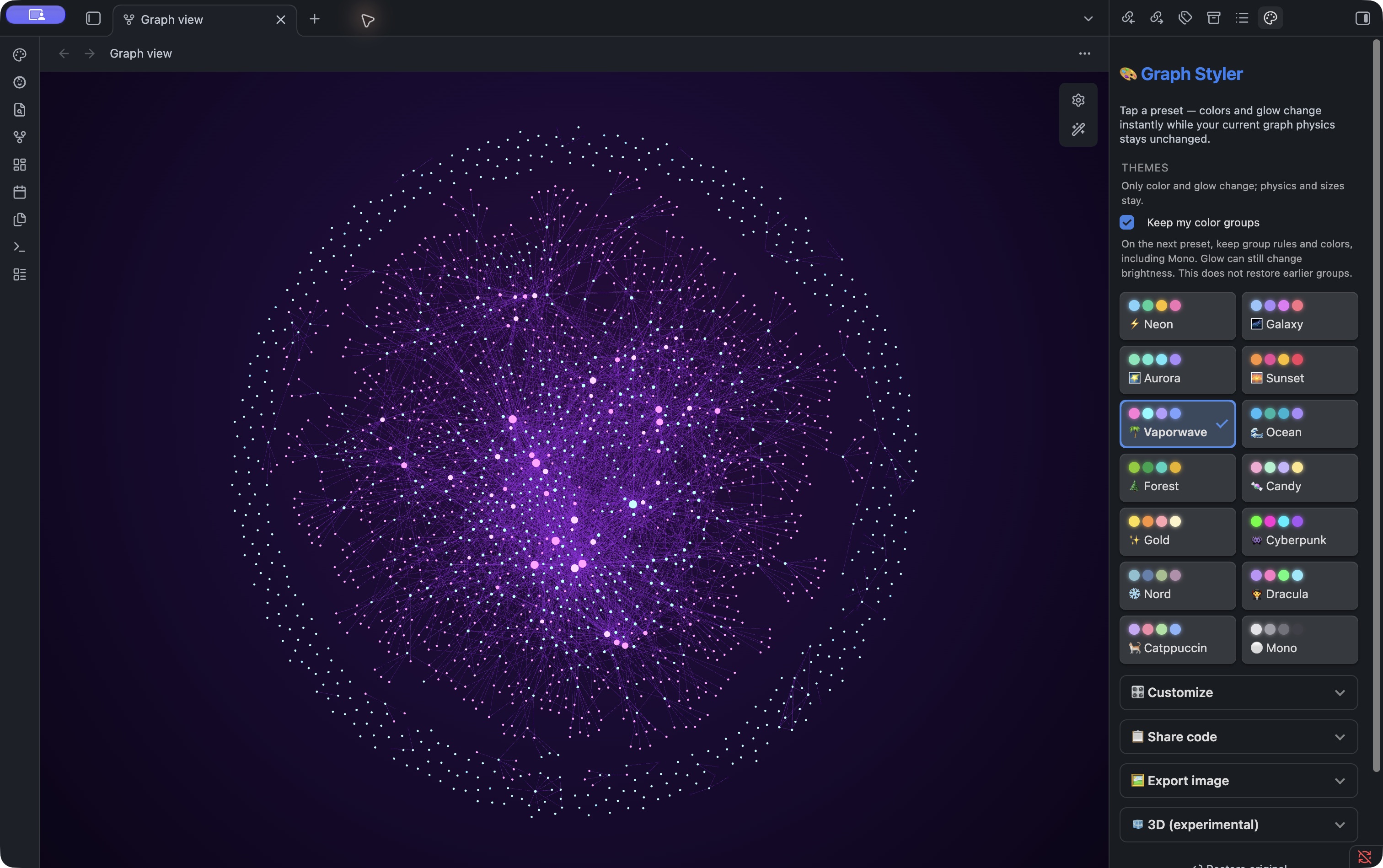
Keep my color groups enabled in the research wiki vault on Graph Styler 0.4.1
Keep my color groups above the presets, enabled in the actual 0.4.1 UI.

If you already use group colors, turn on Keep my color groups before applying a preset. New in 0.4.1.

  • Rules, order and colors stay intact, including with Mono and live preview. Glow can still change apparent brightness.
  • Off by default. When on, group color pickers are disabled and local graphs keep their own groups. The setting stays in this vault and is not shared in a preset code.
  • It does not recover previously replaced groups. With it off, presets apply automatic groups and Mono clears groups.

Open the 3D graph
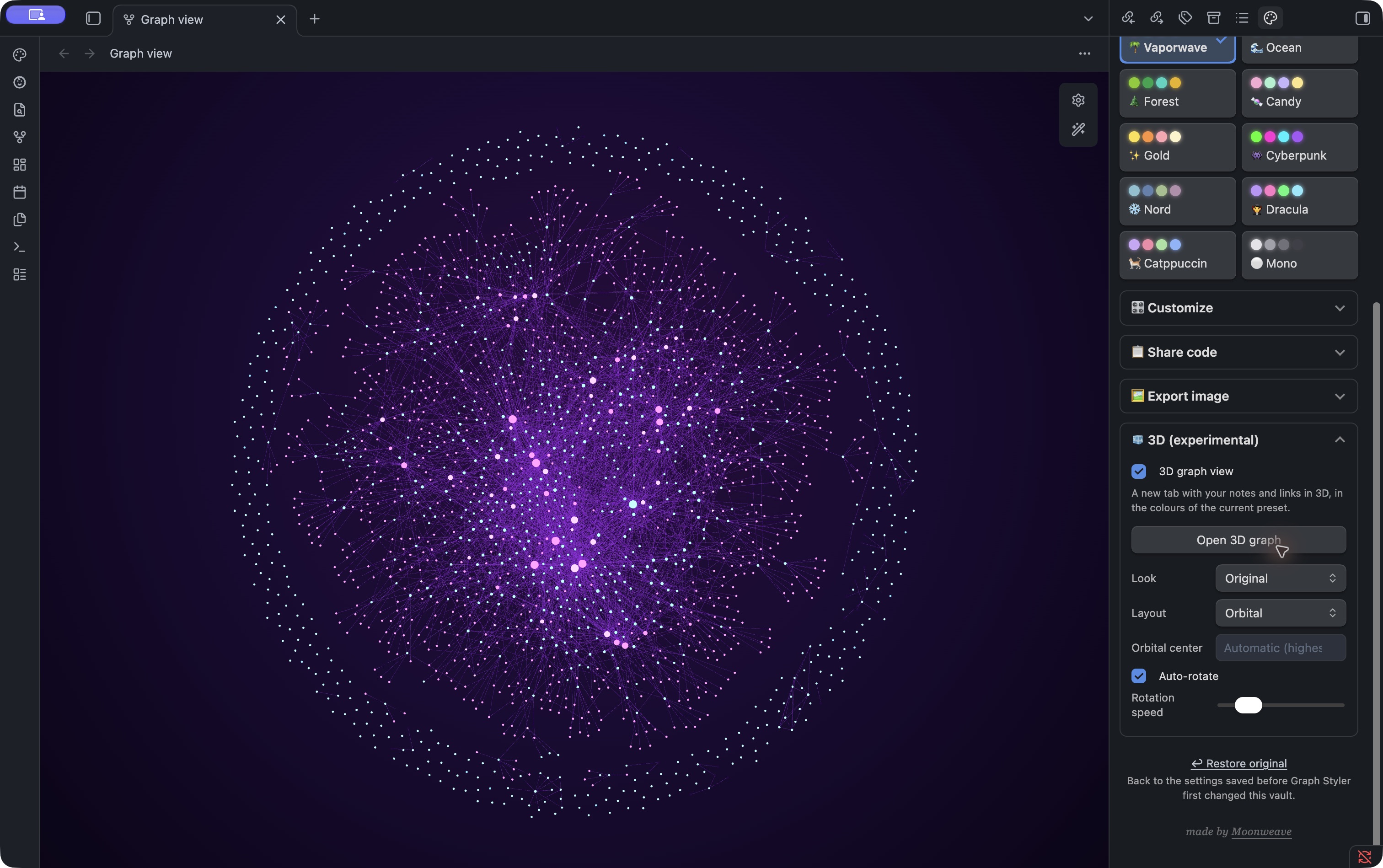
Research wiki dark-theme 3D panel with Look, Orbital layout, center and auto-rotate
Current 3D panel ยท Look controls appearance, Layout controls arrangement. Orbital enables the center input.

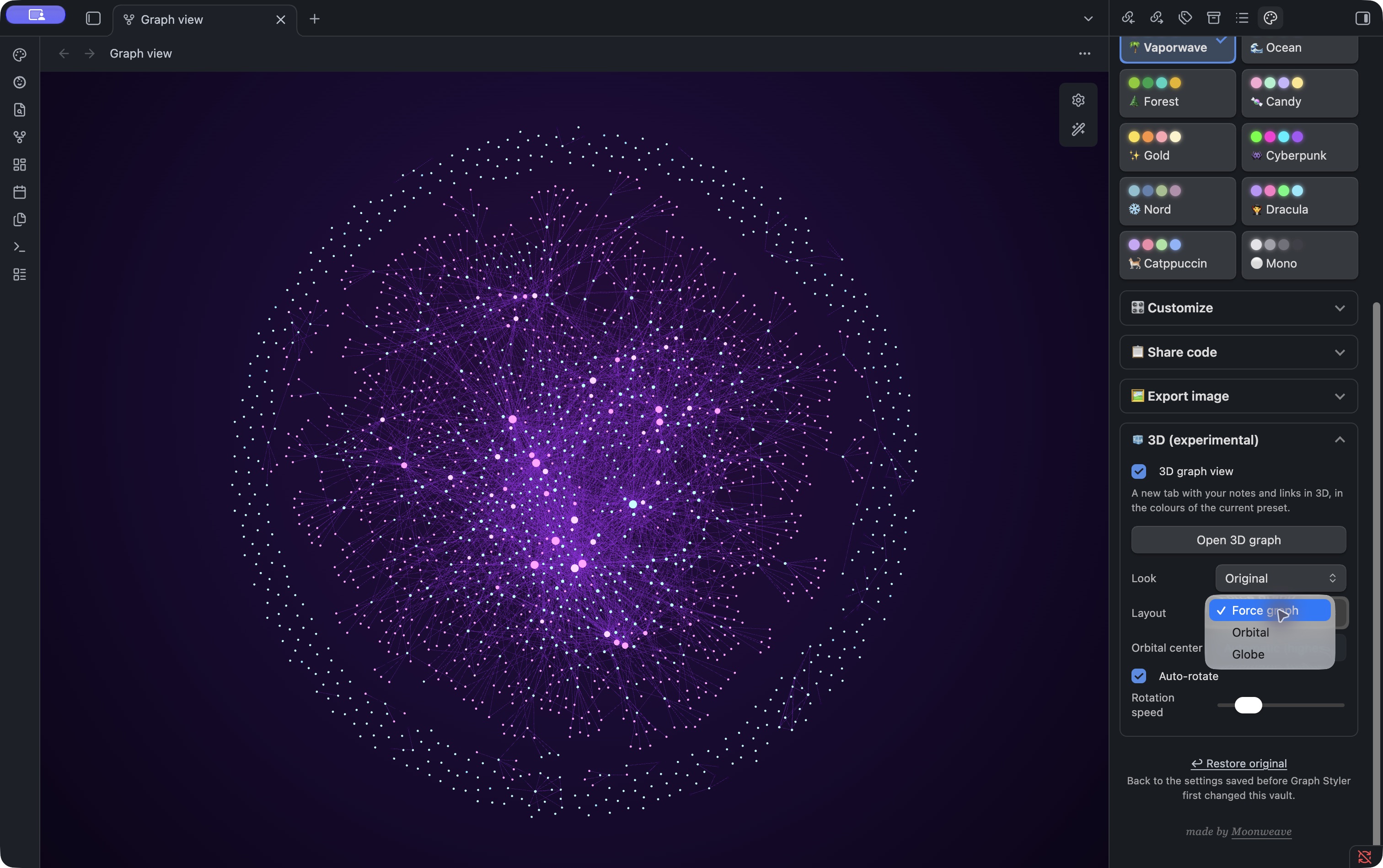
Expand ๐ŸงŠ 3D (experimental), enable the view and select Open 3D graph. Off by default; experimental behavior may change.

Layout and Look are separate: three layouts (Force, Orbital, Globe) and two looks (Original, Deep Space).

3D layouts โ€” swipe or scroll sideways on narrow screens
LayoutWhat it showsKeep in mind
ForceNotes spread by link and repulsion forcesDefault layout. Distances and collision behavior differ from 2D.
OrbitalShells based on shortest link distance from a selected centerSearch for a center; automatic uses the most-connected visible note.
GlobeColor groups placed in regions on a sphere, linked by curved arcsPositions do not represent geography or semantic distance.
Actual Layout dropdown showing Force graph, Orbital and Globe in 0.4.1
The actual Layout dropdown: Force graph, Orbital and Globe.

Drag to rotate, scroll or pinch to zoom, Shift-drag or right-drag to pan. Hover for a name and highlighted links; click to open the note. Auto-rotate can be turned off.

Reopen the 3D tab after changing filters. It snapshots visible nodes and links from the open global graph; filters do not update live. Without a global graph it uses all Markdown notes, not the local graph. Color groups support path: and tag:; arbitrary queries, arrows and text-fade settings do not all carry over.

Share a theme, save a graph
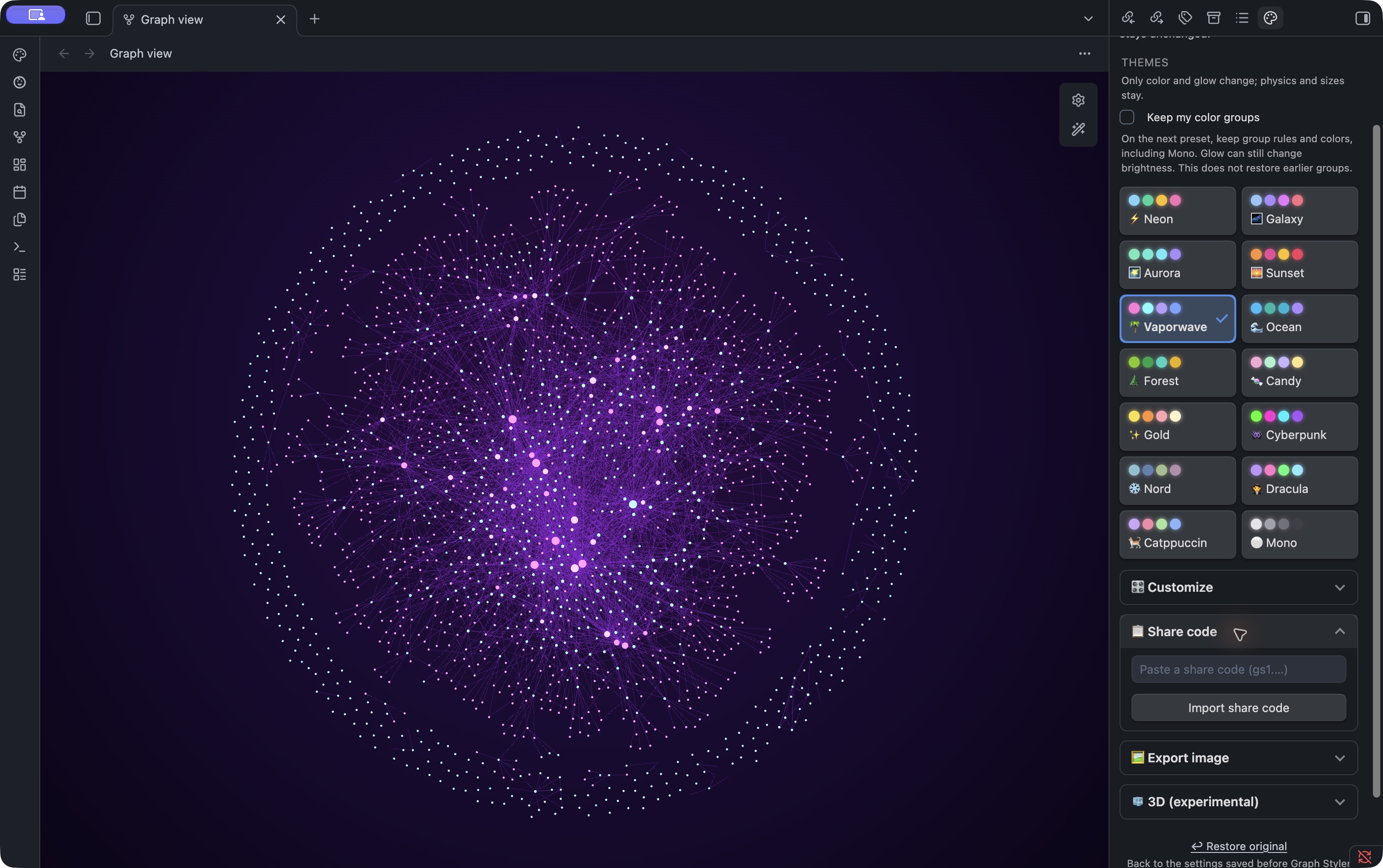
Research wiki dark-theme Share code paste field and Import share code button
To receive a preset, paste its code into Share code and select Import share code.

Share a preset

Select ๐Ÿ“‹ beside a custom preset to copy its code. The recipient uses Share code โ†’ Paste a share code โ†’ Import share code, then selects the imported preset to apply it. To save filters and display too, enable Include filters and display in Customize before saving. Local graph filters stay separate.
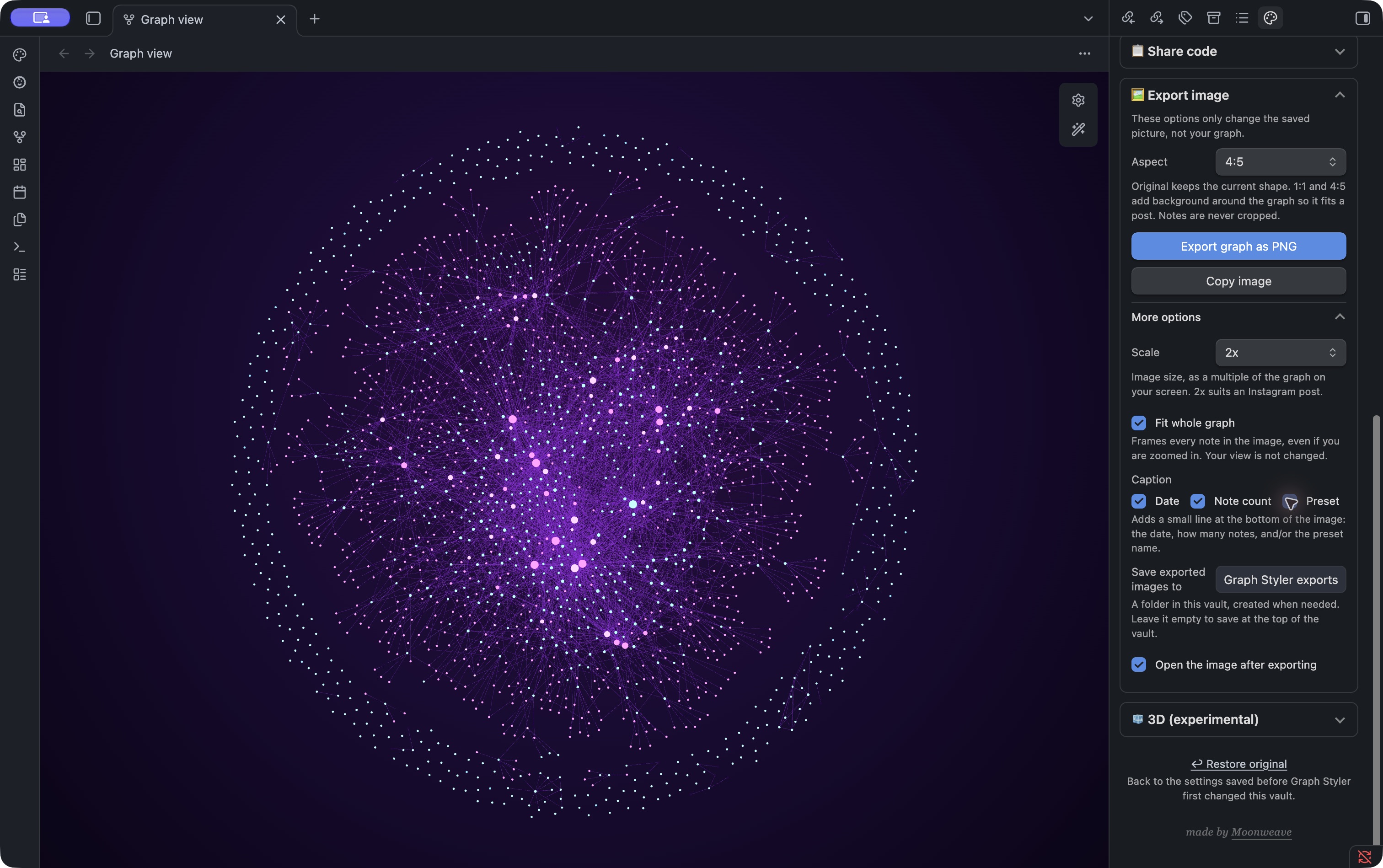
Research wiki Export image panel showing 4:5, PNG and Copy buttons, 2x, Fit whole graph and captions
4:5 โ†’ More options โ†’ 2x and Fit whole graph. Save with Export graph as PNG above.

Export a 2D graph as PNG

Select a global or local graph, then use Export image to save a PNG or copy an image. The panel uses the graph selected most recently. The default folder is Graph Styler exports; the result shows its path and an Open button.

For a post, try 4:5, then Fit whole graph and 2x under More options. Padding avoids cropping notes. Add a date, note count or preset name if useful. Export options do not change graph settings. This export is for 2D global and local graphs.
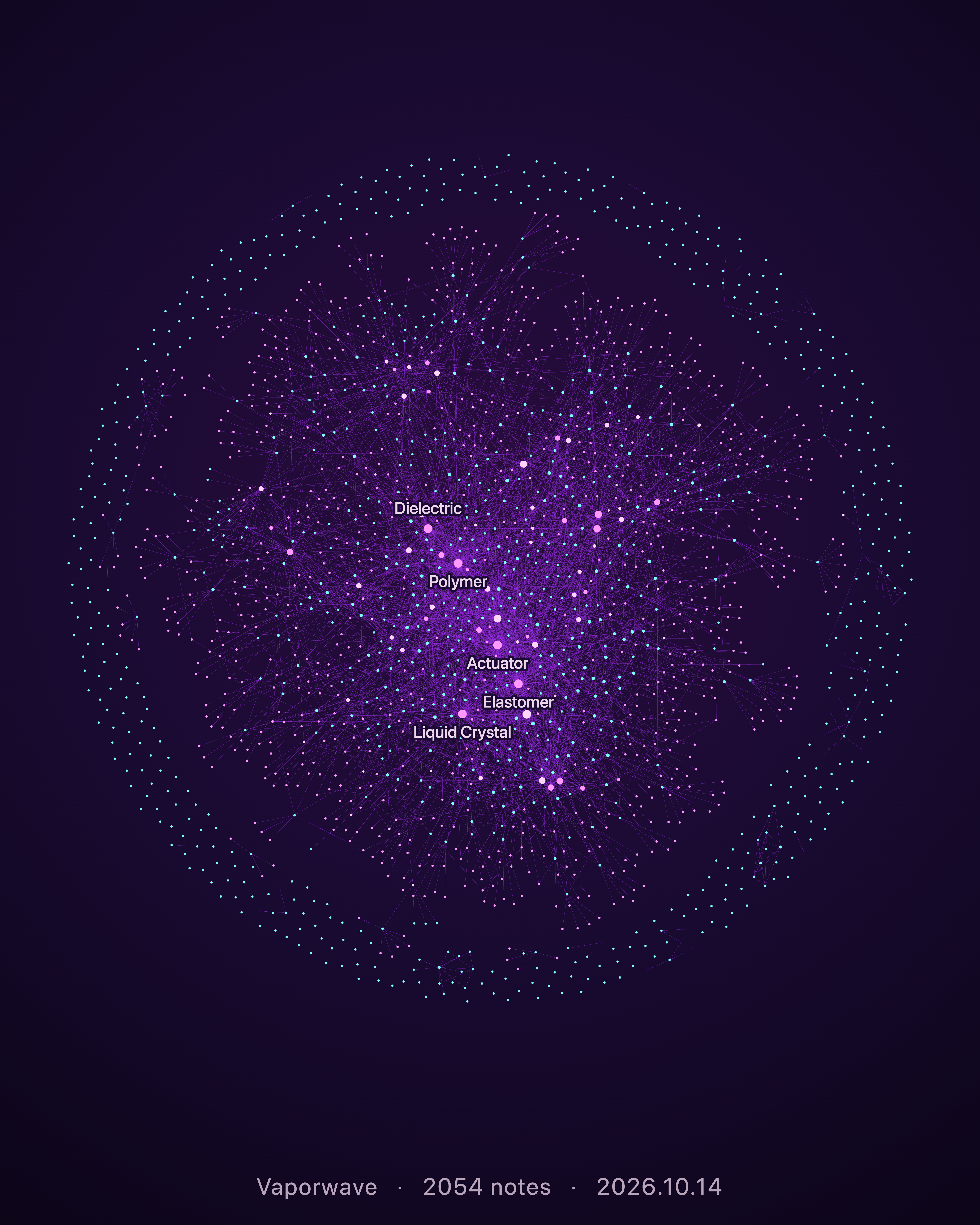
Actual research-wiki Vaporwave PNG export, 2054 visible notes, 4:5, 2x and footer caption
Actual PNG from the same research-wiki: Vaporwave, 2,054 notes, 4:5, 2x. One internal administrative note was filtered out for this public capture.

Already installed?

Use Settings โ†’ Community plugins โ†’ Check for updates and update Graph Styler. Check that its version is 0.4.1. For manual installation, put the release's main.js, manifest.json and styles.css in the plugin folder.

Checked: 2026-10-14 ยท Desktop only ยท Guide: @phd.ai.log ยท Plugin: Moonweave

Your move.

Install from Obsidian โ†’